How to use the shows calendar and subscribe to it
See shows and events on one timeline, and subscribe so they appear in your own calendar.
-
Click Shows in the navigation, then Calendar at the top of the page. The calendar is also at /calendar/ directly.

-
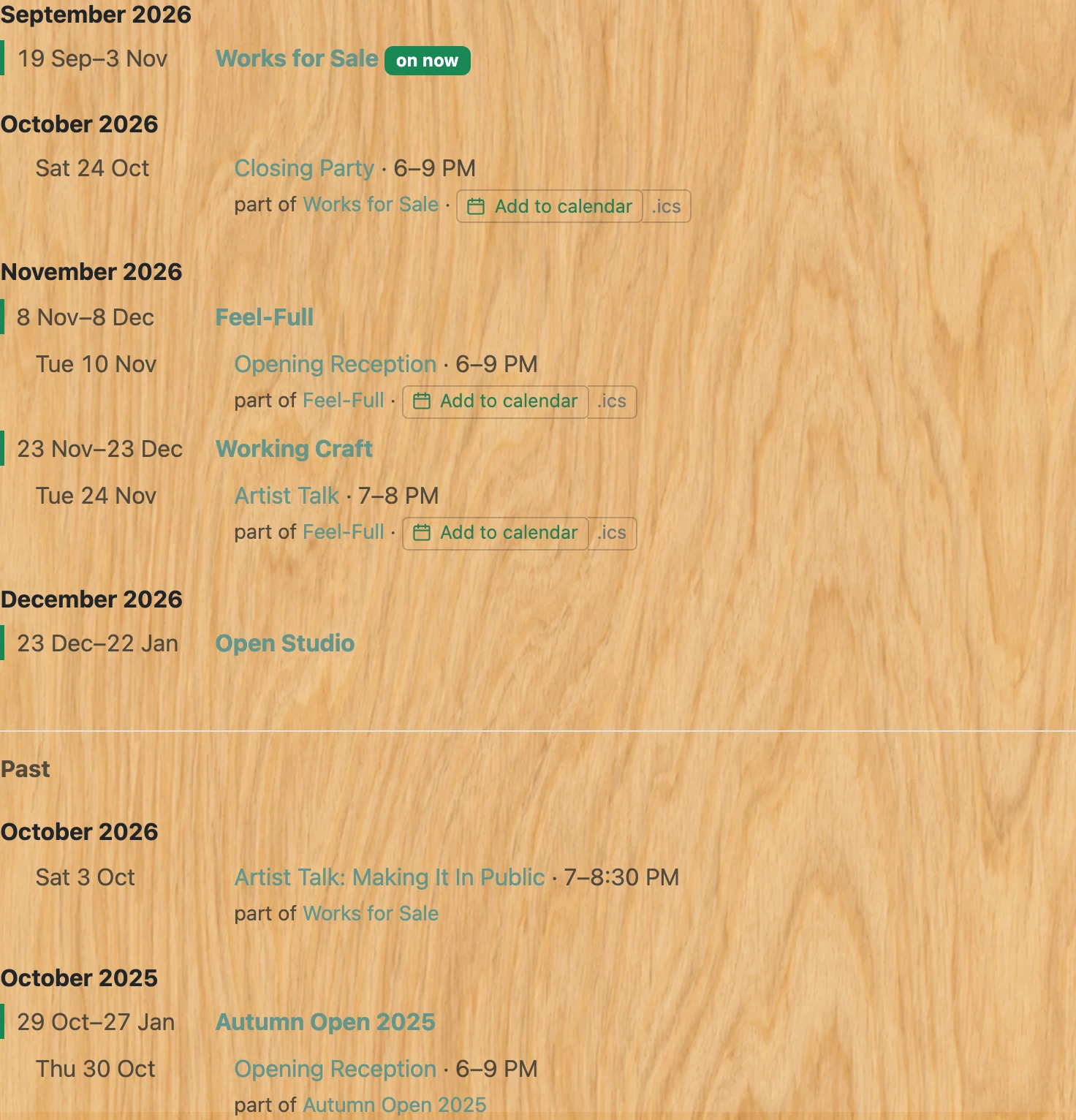
Shows and events appear together on one timeline, grouped by month. A show spans a range of dates — "12 Sep–12 Oct" — and is marked with a green line down its left edge, because a show is the container: its events happen inside its run. An event shows the day and its times, with a link to the show it is part of. A show running today is marked "on now".
-
Everything is on the one page — upcoming first, then a "Past" heading and every finished show below it, most recent first. There is nothing to click through: scroll, or use your browser’s own find to jump to a show by name.

-
Click "Subscribe to this calendar" to add it to Apple Calendar, Outlook, Google Calendar or anything else that reads calendar subscriptions. Your calendar will then check for changes on its own — new shows and events appear without you doing anything.

- Use "download .ics" instead if you want a one-off snapshot rather than a live subscription. A downloaded file does not update when the gallery adds a show.
- A note on Google Calendar: it caches subscriptions for a long time, sometimes many hours, so a change made today may not appear there until tomorrow. Apple Calendar and Outlook refresh more often. This is Google’s behaviour and there is nothing the gallery can change about it.
- To follow just one venue, open that venue from Sites and use its own Calendar link. Its feed contains only that venue’s shows.