How to submit artwork to a show (open call or invitation-only)
Everything from creating an account to submitting a piece and tracking it. With screenshots.
- The steps are the same for open call and invitation-only shows. The only difference: for an invitation-only show you must first have been invited. You receive an invitation email with a personal accept link — open it (after signing in, or signing up with any email) to link the invitation to your account. Accepting drops you straight into submitting, picking up at whichever step below you still have left, so you can carry on from the email without looking for anything. If your account email already matches the invited address you are recognized automatically, no link needed.
-
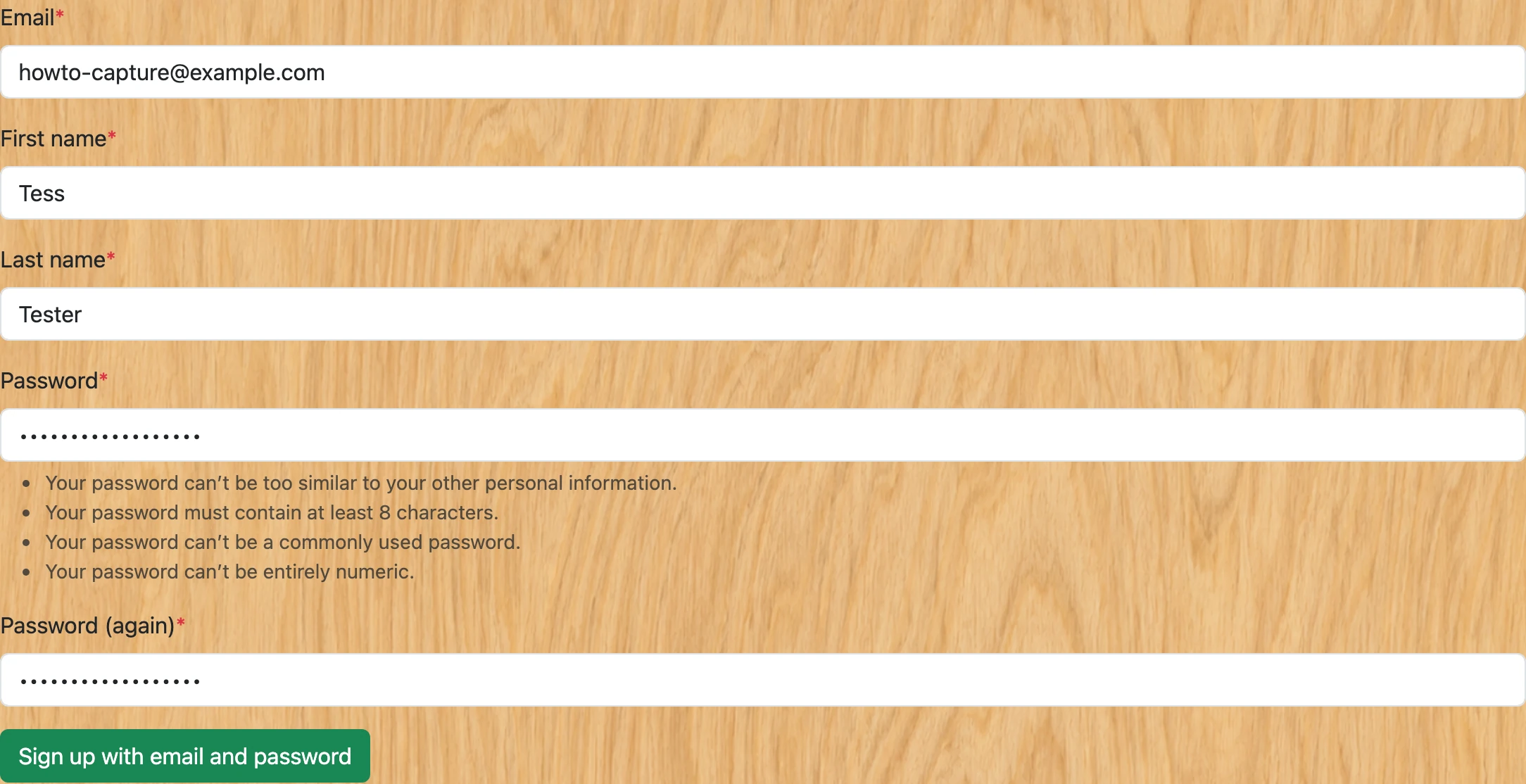
Create an account — skip to "Add your artwork" below if you already have one. Open the Account menu in the navigation and choose Sign Up, then enter your first name, last name, email address, and password. Choosing "Continue with Google" instead signs you straight in and skips the next two steps.
-
Confirm your email address. Signing up does not sign you in: you land on a "Verify Your Email Address" page, and we send you an email with a confirmation link — open it and click the Confirm button. Nothing else works until you do, so check your spam folder if it has not arrived.

-
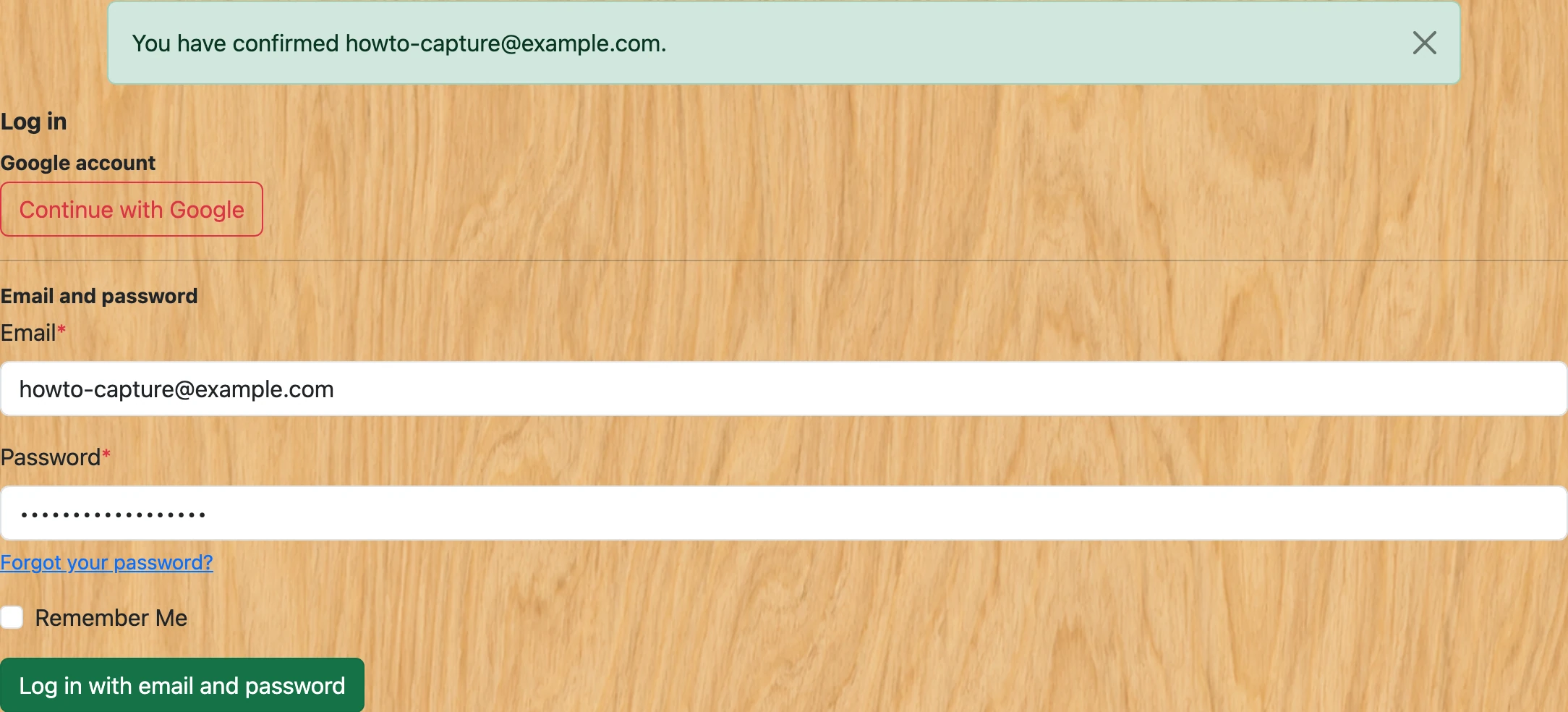
Log in. Confirming your address takes you to the log-in page. Sign in with the email address and password you just chose.
-
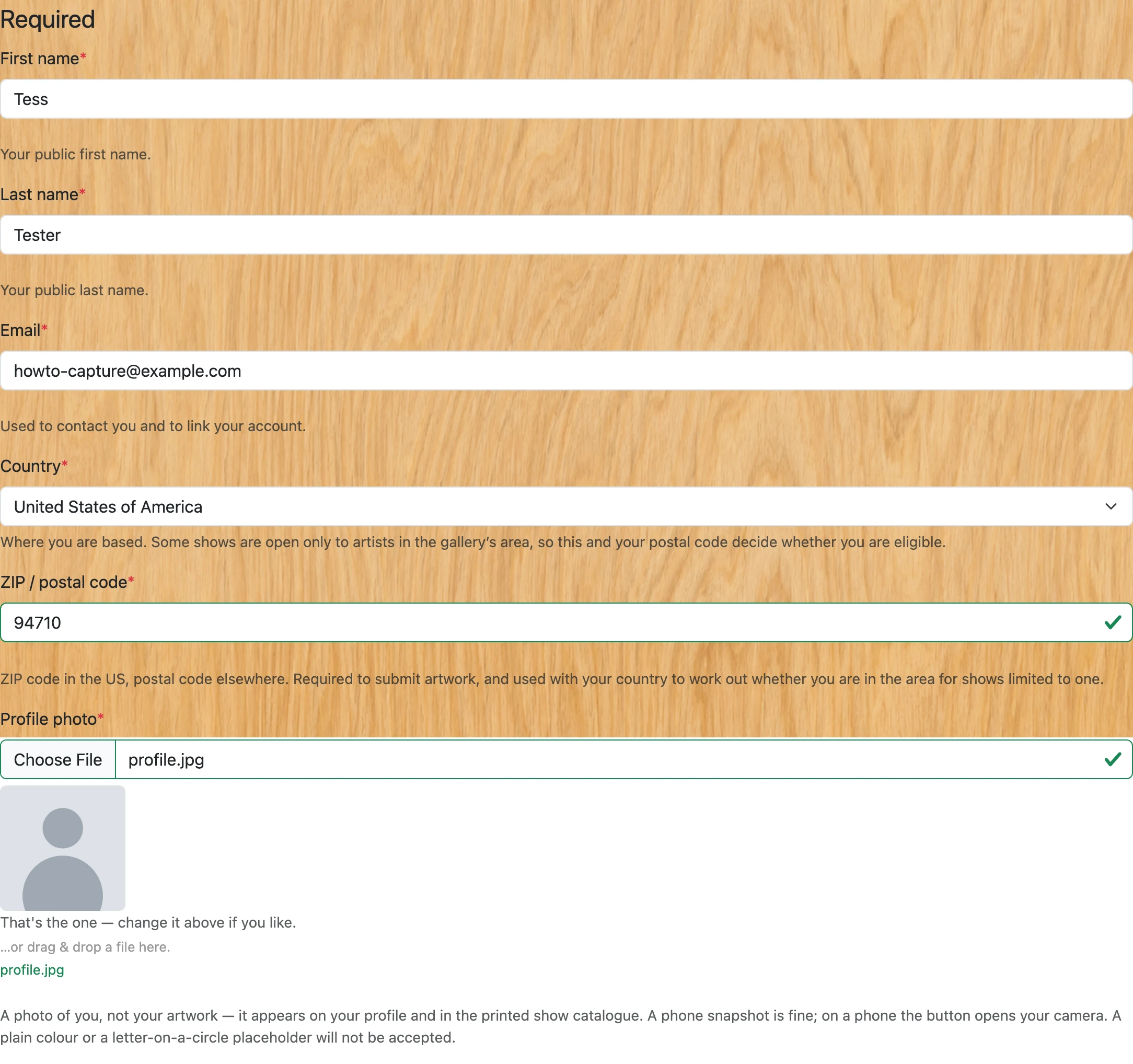
Complete your artist profile. Logging in for the first time takes you to your artist profile edit page. Fill in your first name, last name, country and ZIP / postal code. Then upload a profile photo — this must be a photo of YOU (the artist), not a photo of your artwork. Your profile photo appears on your public artist page. Click Update to save.
-
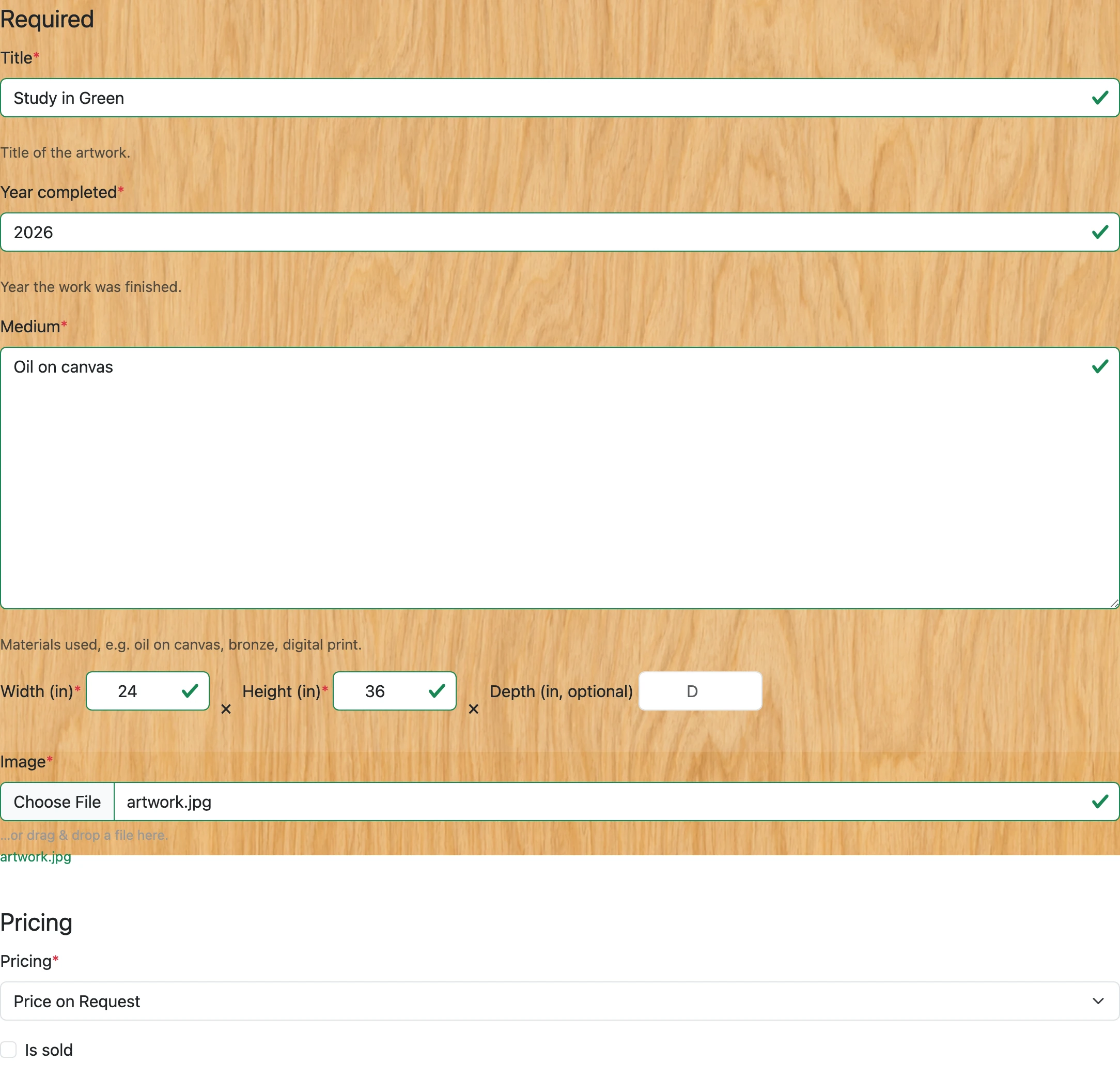
Add your artwork. Go to your Me page, scroll down to the Artworks section, and click New. Fill in the title, year, medium, and dimensions, and upload an image of the artwork itself. You must also choose a Pricing option before the form will save — pick "Not For Sale" if you would rather not name a price, or "Price on Request" to invite enquiries. "For Sale" additionally requires a price. Then Save.
-
Submit. On your Me page the show appears under "Shows Accepting Submissions" with a Submit button; the show detail page has one too, directly under the submission deadline. It says Submit whatever stage you are at — signed out, no profile yet, or ready — and takes you to whichever of these steps you still have left rather than to a page you cannot use yet, so a submit link shared in an email or a post works for someone who has never been here before. A three-step tracker (Account, Your details, Your artwork) runs across the top of each page so you can see how much is left. Click it, then click the cards of the artworks you want to submit — click as many as you want, each one ticks and highlights, and they all go in together when you click Submit. The button counts what you have chosen ("Submit 3 artworks") and the line under it says how many more you may pick. Anything already in this show is listed above the picker under "Already in this show", so you can always see what has gone in; each artwork can only be submitted once per show.

- Some shows cap how many artworks each artist may submit. When a limit is set, the submit page shows your allowance (e.g. "up to 3 per artist — you can submit 2 more, and you can pick them all at once below"). Once you have ticked that many the remaining cards grey out and cannot be ticked, and once you have submitted that many the page says so and the picker is gone.
-
Some shows ask you to accept their terms before you enter — where you have to be based, whether you install your own work, whether being at the opening is part of taking part, and what the gallery keeps if a piece sells. Four tick boxes, once per show. You see them before you type anything in and before any fee, because they are things you may not be able to do and it is better to find that out now.
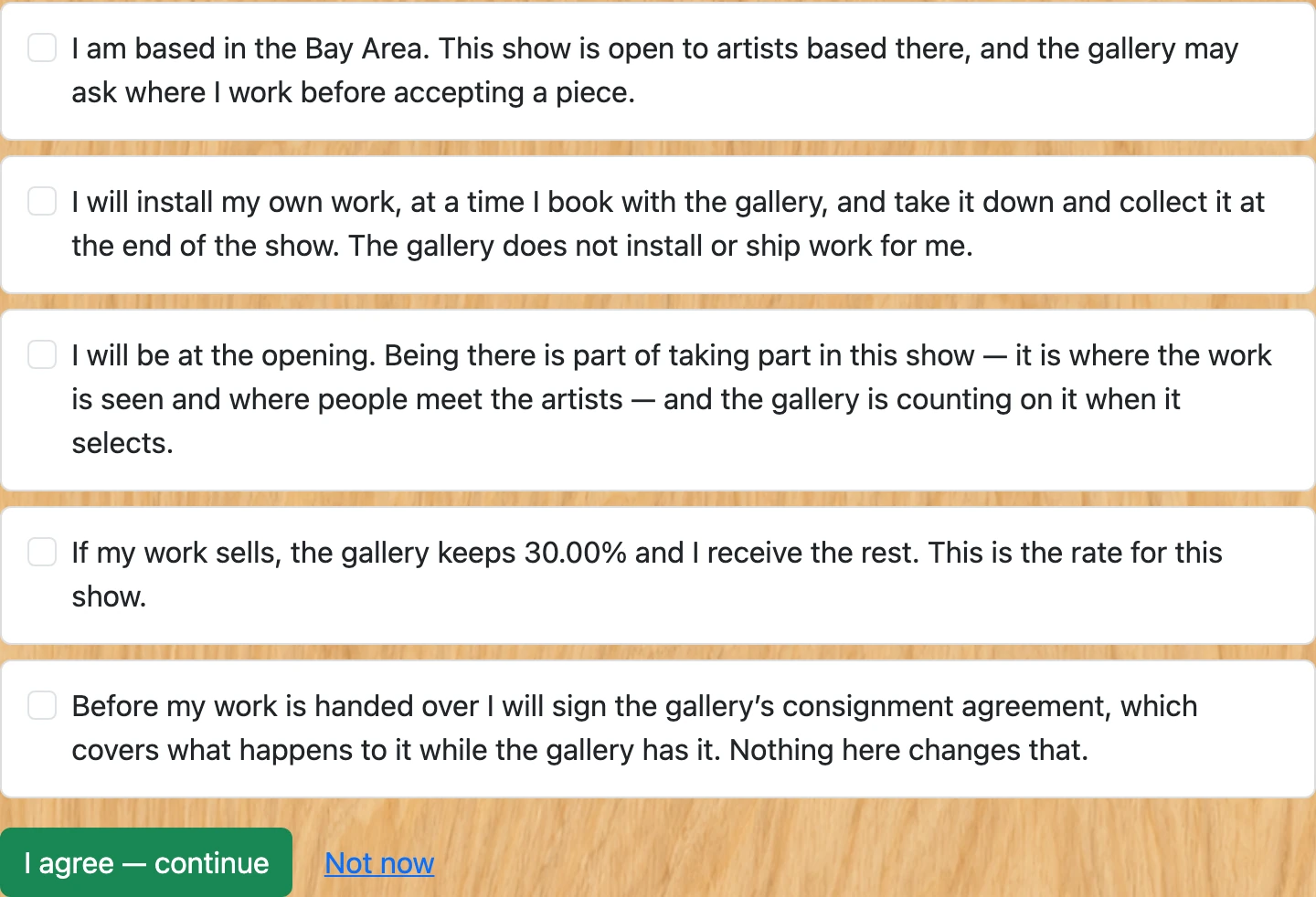
- These are not the consignment agreement. That is separate, comes later, is signed when you hand the work over, and is what covers your work while the gallery has it.
- Some open calls charge an entry fee. If this one does, the amount is on the show page beside the deadlines and again on the submit page, before you start. It covers your whole entry rather than each piece — so submitting three artworks costs the same as submitting one, and you are only asked once however many you enter. The Stripe page says the same thing, and the simplest way to see it is to pick all your pieces together before clicking Submit: one trip, one payment. The show page also says where it goes: it pays the jurors who read every entry, which is why it is not refunded if your work is not taken — they read it either way.
- Submitting takes you straight to Stripe to pay. Your work is saved before you get there, so if you stop or your card is declined nothing is lost — the show page and your own page both keep a Pay button, and your submission stays where it is. The fee does not have to be paid by the submission deadline, but it does have to be paid before judging starts — your work is not looked at until it is settled. It is not refunded if your work is not selected, because the jurying happens either way; if the show is cancelled it is refunded in full. If the fee would stop you entering, ask the gallery: it can be waived, and asking is normal.
-
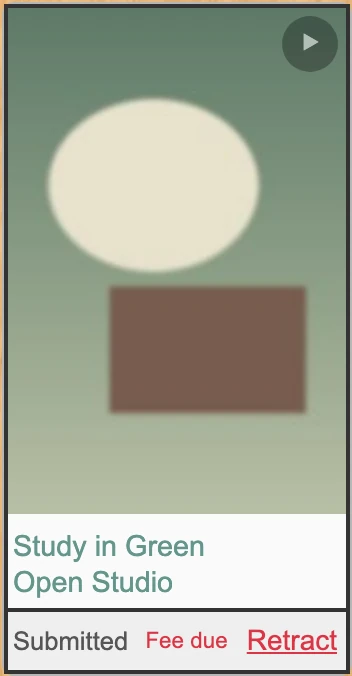
You will receive one confirmation email for everything you sent in that go, listing each piece, how many you now have in the show, and how many more you may add. Your submissions appear on your Me page and on the show detail page as "Submitted".
-
You can remove your submission while the show is still accepting submissions by clicking Retract next to your artwork on your Me page or the show detail page. Retracting permanently removes the submission — you can resubmit a different artwork while the show is still open.

- Once the show moves to In Review, submissions are closed and you cannot retract.
- You will receive an acceptance or rejection email when the curator publishes the show.